Running a Telegram channel is fun until the routine starts eating up your time. Announcements have to go out at seven in the morning, weekend promos need repeating in three different channels, and one forgotten message can leave members wondering. Many admins end up copying and pasting the same message over and over, or setting reminders on their phones so nothing slips through.
AutoPost was made to cut out that repetitive work. You write one post, choose the target accounts, then decide when the post goes out. Sending is handled by the server, so your laptop or phone can be switched off. This page explains how it works, how to set it up, and the limitations you should know about from the start.
What does Telegram auto post mean in AutoPost?
Telegram auto post means posts are sent to your channel or group without you having Telegram open at that moment. In AutoPost, there are two ways to use it:
- Send now — one post goes out right away to all the Telegram accounts you choose, with a report for each account.
- Schedule — the post is saved with a publish date and time. When the time comes, the AutoPost server sends it to each target.
If you want posts to keep flowing without writing them yourself every day, there is also AI auto post and auto post from a website/RSS (still in beta), which uses your own AI key. To get started, the manual method below is all you need.
What you need
- An AutoPost account. Signing up is free during the trial period and doesn't require a credit card.
- A Telegram bot you create yourself. Creating one through @BotFather is free and only takes a few minutes.
- A Telegram channel or group you manage, where that bot is allowed to send messages.
How to set up Telegram auto post, step by step
Step 1: Create a bot in @BotFather
Open Telegram, search for @BotFather, and tap Start. Send the
/newbotcommand, give the bot a name (anything works, such as your shop's name), then choose a username, which must end in “bot”. BotFather will reply with a token that looks like123456789:AAH…. Copy that token and don't share it with anyone — whoever holds it can control your bot.Step 2: Make the bot a channel admin or a group member
For a channel: open the channel, choose Manage → Administrators, add your bot, and make sure the permission to post messages is turned on. For a group: add the bot as a member; if your group restricts who can send messages, make the bot an admin. Without this permission, Telegram will reject messages from the bot.
Step 3: Connect it in AutoPost
Sign in to AutoPost and open the Social accounts → Telegram menu. Paste the bot token, then enter the target: a public channel name such as
@your_channel, or a chat ID such as-1001234567890for private channels and groups. Tap Test & connect.Before saving, AutoPost checks the token with Telegram and makes sure the target can be reached. Only what passes is saved, and the token is encrypted with AES-256-GCM on the server. After that, the token is never shown in full again — the screen only shows its first and last few characters.
Step 4: Write the post and choose the target accounts
Open New post. Write the text, then add an image if needed. The account name and the call-to-action bar at the bottom of the image can be applied automatically based on your settings on the Branding page, and the preview matches the final result. Tick the Telegram accounts you want to post to — one, or several at once.
Step 5: Send now or schedule
Choose Send now if the post needs to go out right away, or Schedule and fill in the date and time. Scheduled times are read as WIB (UTC+7), the same as what's shown in the Schedule calendar and the Posts list. You can also save it as a draft first and decide later.
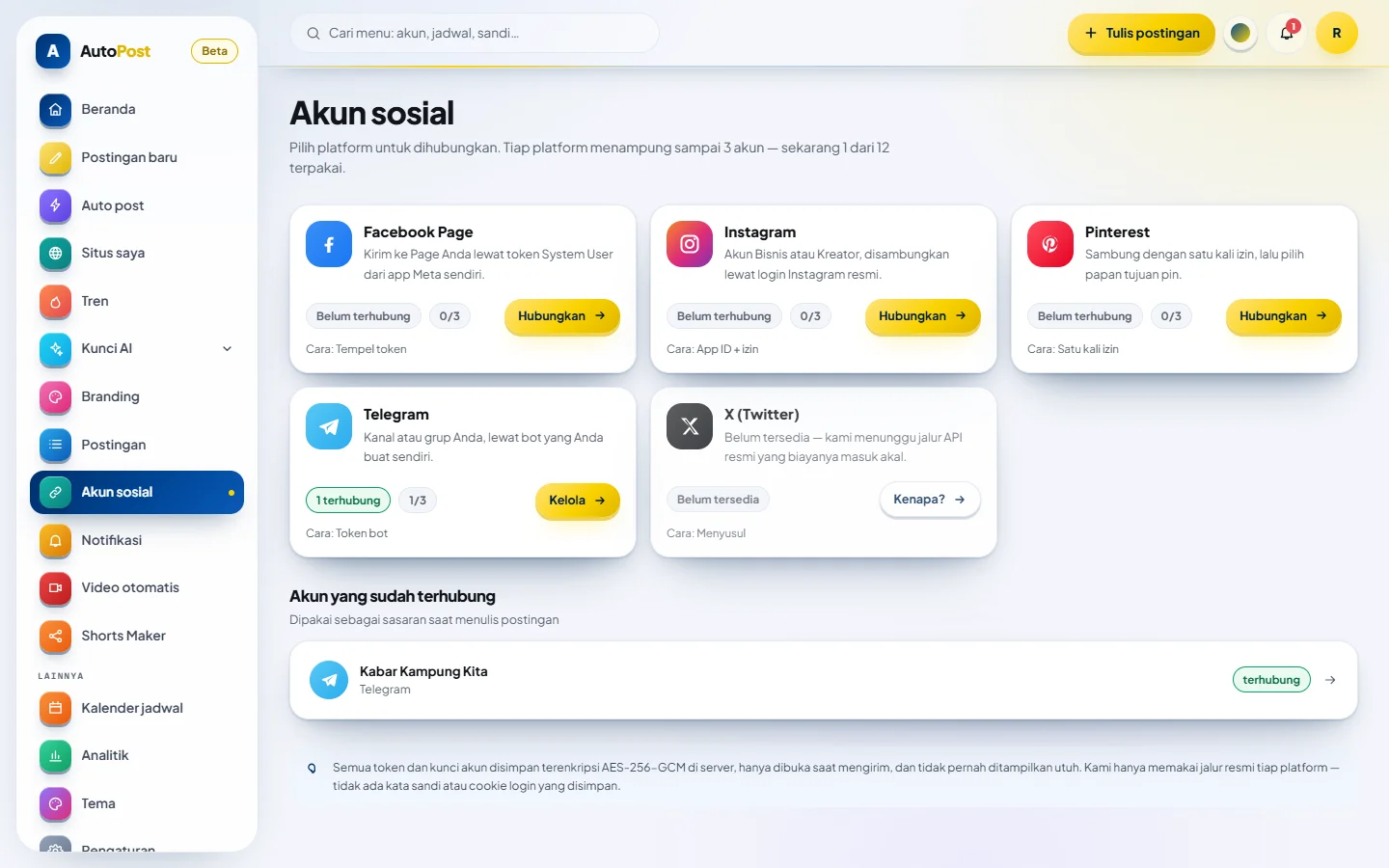
Social accounts page: each platform has its own card showing how to connect it, and the Telegram channel that's already connected appears below.
Post to many Telegram channels at once
This is the main reason people use AutoPost. One post can be sent to several channels or groups with a single tap. Each connection consists of one bot token and one target, and each user can have up to three Telegram accounts. For example: a shop promo channel, a customer group, and a community announcement channel.
Send results are recorded per account, not lumped into one. So if two channels succeed and one fails, you know exactly which one failed and why, and you can resend once the problem is fixed.
If a send fails
Small hiccups are bound to happen: the network stalls or Telegram's servers are busy. For temporary failures like these, AutoPost retries automatically after 1 minute, then 5 minutes, then 30 minutes. If the problem persists — for example, the bot was removed from the channel or its token was revoked in BotFather — the reason is recorded right away on that account on the Posts page, and an in-app notification lets you know too.
On the Social accounts page there is a Test again button for checking whether a connection is still healthy before you schedule lots of posts.
Limitations you should know about
- Telegram limits text messages to 4,096 characters, and photo or video captions to 1,024 characters. Long posts are best sent without an image, or split up.
- A bot can only send to channels or groups where it is allowed to send messages.
- Besides Telegram, the same post can be sent to X (with a monthly posting quota) and to Facebook Page, Instagram, and Threads (through your own Meta app). Pinterest and TikTok are still awaiting approval from those platforms.
- A maximum of three accounts per platform for each user.
How much does it cost?
During the trial period, AutoPost is free and no paid plans are being sold. Creating a bot in Telegram is free too. Costs only come up if you use AI auto post with a paid AI key — and that cost is paid directly to the AI provider, not to us. Details are on the AI auto post page.
Next steps
Once your first channel is connected, try planning a whole week's schedule at once. The guide on how to schedule Telegram posts includes a sample weekly plan you can copy right away. Want to see everything AutoPost can do, and what's still in progress? Open the full feature list.