Keeping a channel alive means having something to post every day. That's where AI auto post helps. Just describe the topic — for example, “tips for saving mobile data and phone battery for students, casual tone” — and AutoPost uses an AI model to write posts on the schedule you set.
This feature is still in beta. That means you can use it for real, but we're still refining it based on actual use. Results can be sent to the Telegram, Facebook Page, Instagram, and Threads accounts you've connected, and the image can be a free stock photo from Pixabay that matches the content. X is deliberately left out of auto post because posting to X uses a monthly quota, and TikTok is left out too because TikTok requires you to compose and approve each post yourself.
Two kinds of auto post
1. AI writes from a topic
You fill in the topic, the writing language, and the length: short (30–60 words), medium (60–110 words), or long (120–180 words). A few extra options make the results feel more polished:
- Your link with its lead-in text, inserted into every post. The AI itself never makes up links.
- A serialized story in 2, 3, or 5 parts, if you want the topic covered as a series.
- An image from a web address (JPG, PNG, or WebP) sent along with the post — complete with branding from the Branding page (account name and bottom bar) when the “On auto post images” option is turned on.
- Hashtags: two or three hashtags that match the post's content.
2. From your website or RSS
Just enter your website address — WordPress, Blogger, or any site with RSS, Atom, or a sitemap. The feed address is found automatically. Each new article is shared only once to the accounts you choose, and the site is checked every hour within its schedule window.
You're free to choose whether the caption is written by AI. With AI captions turned off, the post contains the article's title and opening sentence — without using an AI key at all. The article's main image can be sent too, with the same branding. If an image can't be processed, it's sent as is so the post still gets published.
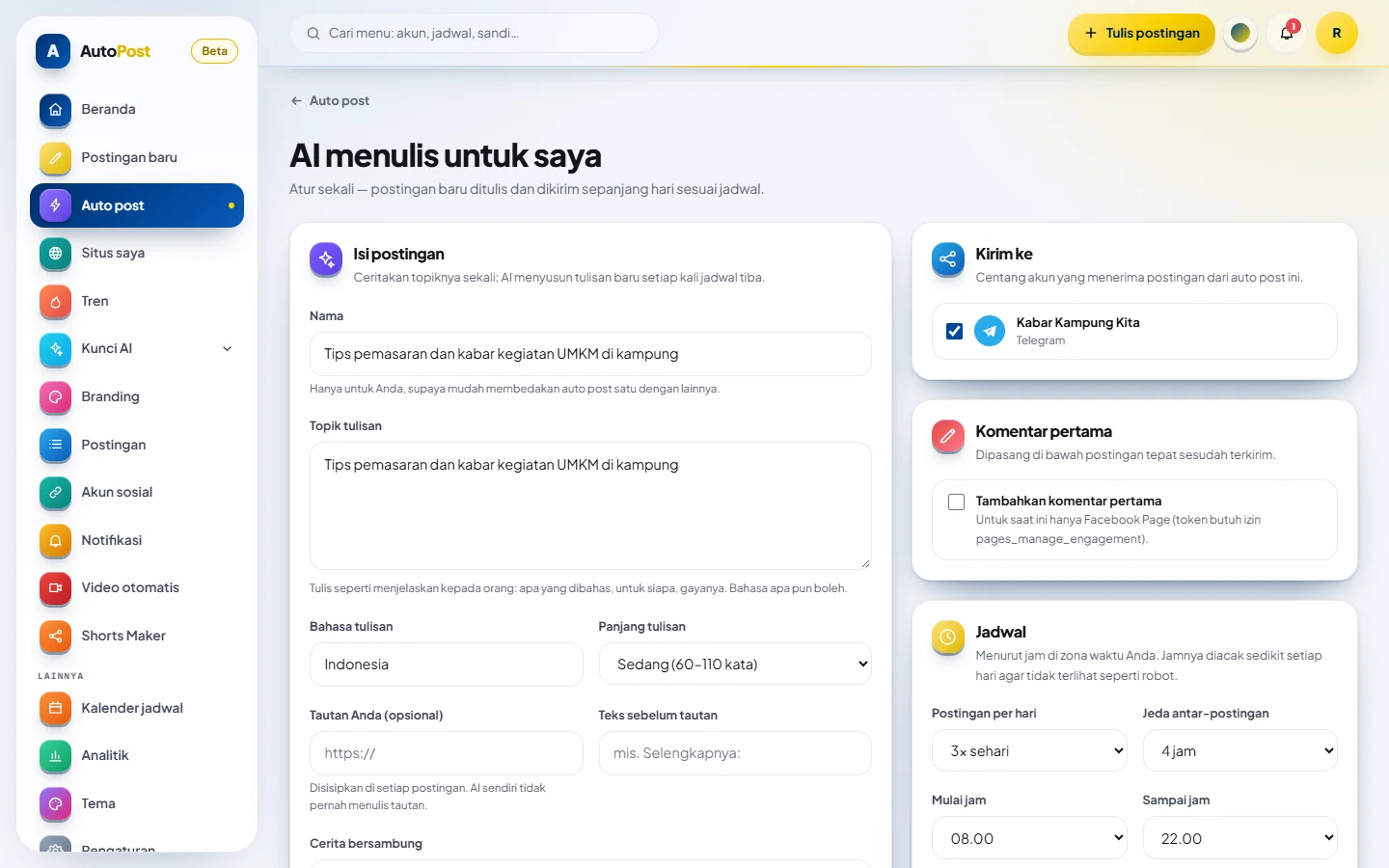
The AI auto post form: topic, language, post length, and daily schedule.
Why use your own AI key?
AutoPost doesn't sell AI credits. You use a key from an AI provider in your own name, so the costs are transparent: the bill (if any) comes straight from the provider, with no middleman and no markup from us. You're also free to stop at any time by deleting the key.
A Gemini key from Google is the easiest way to start because it has a free quota. Keys from other providers already work too — including OpenRouter, Groq, OpenAI, Anthropic Claude, DeepSeek, Mistral, xAI Grok, and Qwen, and even custom OpenAI-compatible endpoints — so you can pick your own balance of price and quality. You can set the order they're used in under AI keys → Task routing.
How much does AI auto post cost?
For light use, Gemini's free quota is usually enough. The size of the free quota is set by Google and can change at any time, so we don't promise an exact number.
With a paid key, the estimated cost with Gemini 3.1 Flash-Lite is about US$0.0006, or roughly Rp10, per post. As a rough picture: three posts a day for 30 days is 90 posts, or about Rp900 a month. This is an estimate — your actual bill depends on the provider's pricing and the length of each post.
The AI keys menu has a Usage page that records every model call, successful or failed, along with its estimated cost. As long as you stay within the free quota, the provider doesn't charge anything.
Keeping your AI key secure
- Keys are encrypted with AES-256-GCM on the server before they're stored.
- A key is only decrypted when the server calls the AI provider, and it's never sent to the browser. On screen, only its first 4 and last 4 characters are shown.
- We don't sell data and we don't run ads.
- You can delete your keys at any time, and they're deleted along with your AutoPost account.
How to set up AI auto post
Make sure at least one Telegram account is connected. If not, follow the Telegram auto post guide first.
Step 1: Create a Gemini key in Google AI Studio
Sign in to Google AI Studio with your Google account, then create an API key. You don't need to turn on billing to use the free quota. Already have a key from another provider? You can use it right away too.
Step 2: Save the key in the AI keys menu
In AutoPost, open AI keys → Add key, then paste the key. The provider is recognized from the key's format, the key is tested with the provider, and keys that pass are stored encrypted.
Step 3: Create a new auto post
Open Auto post and create a new one. Give it a name you'll easily recognize, such as “Daily gadget news”. For the AI type, fill in the topic, language, and post length. For the website type, just enter the site's address.
Step 4: Choose target accounts and set the schedule
Tick the target Telegram accounts. Then set the schedule: the number of posts per day (1 to 24), the gap between posts, the start and end hours, and the time zone — WIB (UTC+7), WITA (UTC+8), WIT (UTC+9), or another zone. Each scheduled time is shifted randomly by a few minutes (at most about 12 minutes) so your channel doesn't look like a robot.
Step 5: Turn it on and monitor the results
Turn on the Active switch, then save. Sent posts are recorded on the Posts page with a report per account, and temporary failures are retried automatically, just like regular posts.
Tips for writing topics that produce good posts
- Name your readers. “For coffee stall owners” gives sharper results than a general topic.
- Set the tone. Casual, formal, warm, or funny — just write it in the topic.
- Keep the scope narrow. One auto post per theme. Create another auto post for a different theme.
- Check the first few results. AI can get things wrong. Read the early posts, then refine the topic if the direction isn't right yet.
- Find ideas in Trends. The Trends page in AutoPost shows top news and holidays, including Indonesia's, that you can turn straight into an AI auto post.
Next steps
AI auto post works best alongside posts you write yourself. Learn how to plan a weekly schedule in the guide to scheduling Telegram posts, or see all AutoPost features and their status.