Almost every channel manager has been there: in the first week you're full of energy and posts go out every day. By the third week things get busy, the channel goes quiet for days, and members start forgetting it exists. The problem is rarely a lack of ideas. What usually slips is the habit — and a habit is easiest to keep when it doesn't depend on your memory.
This guide covers how to plan a realistic Telegram posting schedule, prepare the content in a single sitting, and then run it automatically. The examples use AutoPost, but the planning principles apply to any tool.
Why have a posting schedule?
- Members know when to check in. Announcements that always go out at the same time are easier to look forward to than ones that arrive at random.
- You write when your mind is clear, not in a rush five minutes before posting time.
- Your channel keeps running while you're busy, on the road, or on vacation.
- Fewer mistakes. Posts prepared in advance get a second read before they're published.
Telegram's built-in scheduling vs. a scheduling tool
Telegram itself has scheduled messages: long-press the send button, then choose a schedule. For a single channel and the occasional announcement, that's enough — and it's free. A scheduling tool like AutoPost starts to make sense when:
- the same post needs to go out to several channels or groups at once;
- every image needs consistent branding — the account name and a call-to-action bar at the bottom;
- you want to see all your schedules in one calendar, not scattered across many chats;
- you need per-channel reports and automatic retries when sending fails;
- you want some of your content written by AI from a given topic, or pulled from your blog articles.
Planning your week
Start with what you can keep up. Three quality posts a week that go out regularly beat two posts a day that stop in the second week. Pick a few content “pillars” — kinds of posts that repeat — and assign them to specific days.
Here's a sample plan for a coffee shop's channel. Swap in content that fits your own channel:
| Day | Time (WIB, UTC+7) | Content type | Destination |
|---|---|---|---|
| Monday | 07:00 | This week's menu + branded image | Promo channel, customer group |
| Wednesday | 12:00 | Quick tips (can come from AI auto post) | Promo channel |
| Friday | 16:00 | Weekend promo | Promo channel, customer group |
| Sunday | 19:00 | Behind-the-scenes story / holiday greeting | Promo channel |
The times above are only examples, not the “best” times for every channel. Every channel's audience is different. Try one pattern for two to three weeks, watch how members respond and check Telegram's built-in statistics if they're available for your channel, then shift the times if needed.
Running your schedule with AutoPost
Make sure your Telegram channel or group is connected. If not, follow the Telegram auto post guide first — it takes about fifteen minutes.
Step 1: Write a one-week plan
Use a table like the example above. A note on your phone or a sheet of paper is fine; what matters is that the day, time, content type, and target channel are clear.
Step 2: Prepare all your posts and images at once
Set aside an hour — Sunday afternoon, for example. Write all of next week's posts in one go. Writing in a single session keeps your tone more consistent and saves far more time than writing one post at a time every day.
Step 3: Schedule each post in AutoPost
Open New post, paste your text, add an image, and tick the target Telegram accounts. Choose Schedule, enter the date and time, then save. Repeat for the next post.
Scheduled times are always read as WIB, whatever your device's time zone — the same times shown in the Schedule calendar. If you're in WITA, a post for 08:00 WITA should be entered as 07:00; for WIT, subtract two hours.
Step 4: Check the Schedule calendar
The Schedule calendar shows every scheduled post. It's the easiest place to spot a missed day or two posts that are too close together.
Step 5: Review the results every weekend
The Posts page records the result for each channel separately, and Analytics sums up how many posts were sent and how many failed. Temporary failures are already retried automatically after 1, 5, then 30 minutes; anything that still fails has its cause recorded and is reported through notifications.
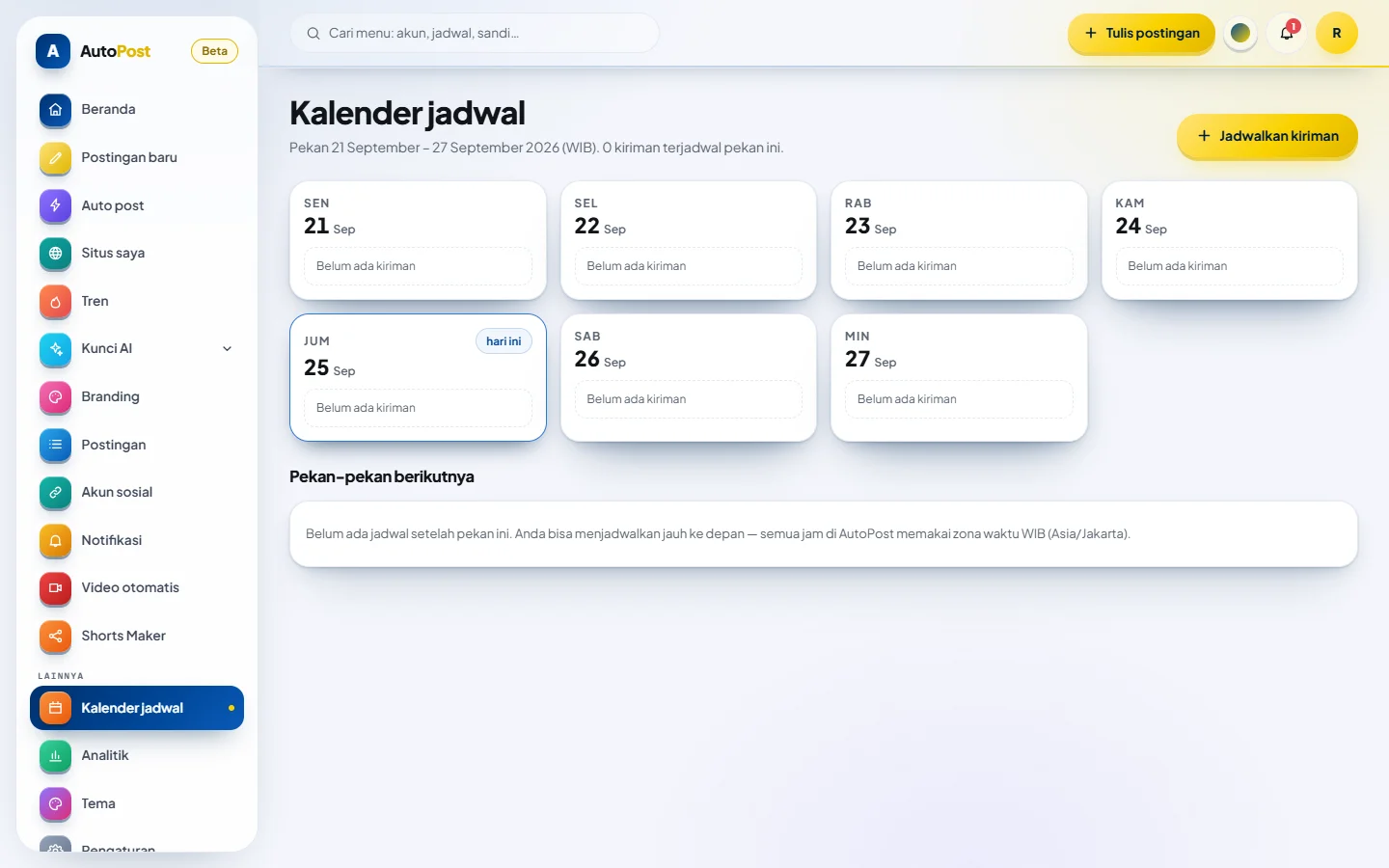
The Schedule calendar: all of this week's scheduled posts in one view.
Want even more automation?
For content pillars that repeat — daily tips, quotes, or quick facts — you can use AI auto post (beta). Set the topic, the number of posts per day, and the time window; the AI writes the posts using your own AI key. Have a blog? The website type of auto post shares every new article to your channel, once per article.
Our advice: let AI fill the lighter pillars, and keep writing the most important posts yourself — announcements, promotions, and stories about you. Readers can tell the difference.
Common mistakes
- Being too ambitious at the start. A packed schedule is easy to abandon. Increase the frequency once the first rhythm feels easy.
- Every post is a sales pitch. Mix in tips, stories, or information that's useful to members.
- Forgetting the time zone. Double-check that the times you enter are in WIB.
- Never reviewing. Spend five minutes every weekend looking at the reports and improving your plan.
Ready to try it? Every feature above can be used for free during the trial period. Also see the AutoPost feature list to find out what's already available and what's still in progress.